This guide provides essential instructions for efficiently managing digital forms, including creation, editing, sharing, and deletion. It streamlines the process for educators to complete forms and seek administrative approval, ensuring clarity and organization. By following these steps, users can easily navigate the platform and enhance their workflow, making it a valuable resource for anyone looking to optimize their digital form management.
1. Click on "Operations"
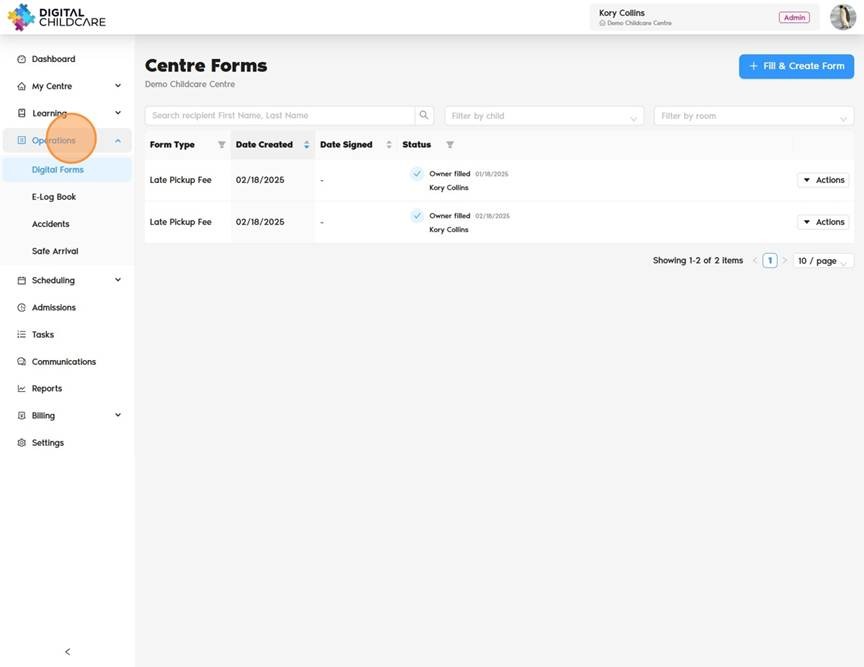
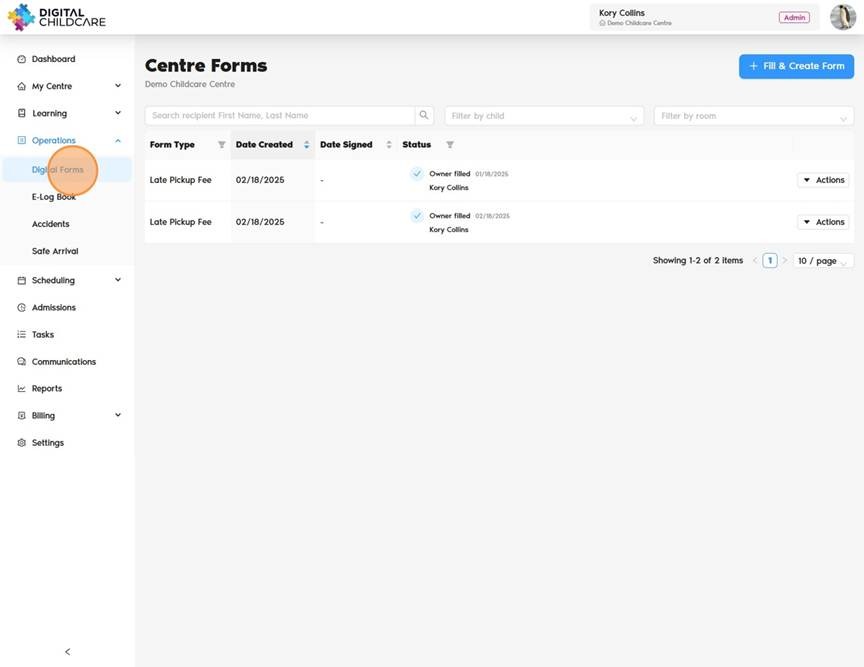
2. Navigate to Operations, then select "Digital Forms".
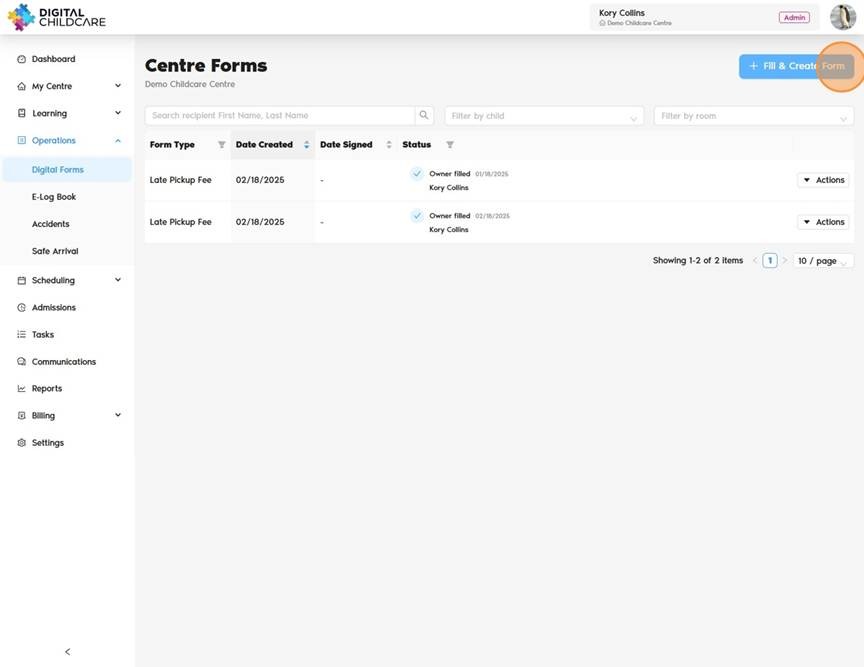
3. Click the blue "Fill & Create Form" button at the top right.
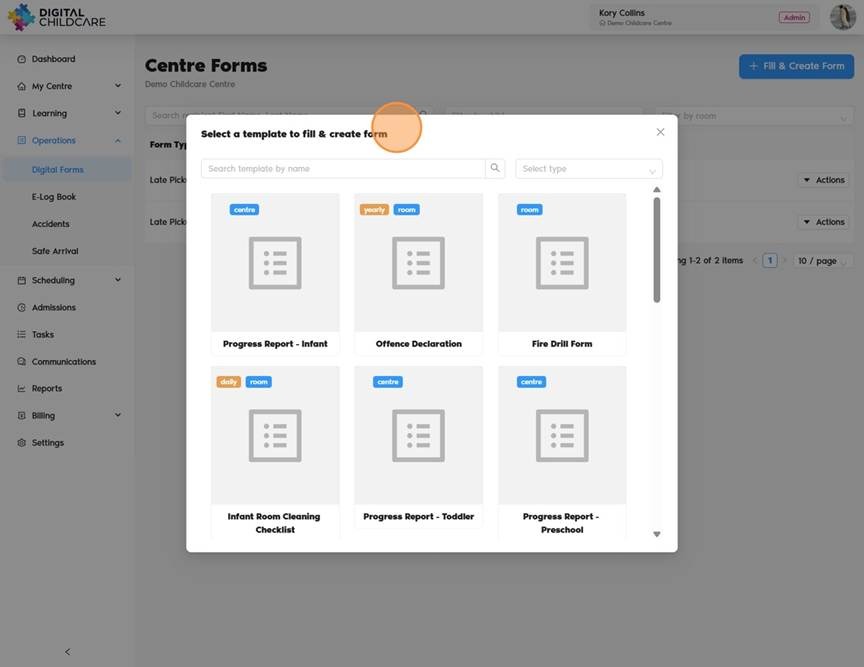
4. Browse the forms and select the one you require by clicking on it.
5. Click on "Actions" to view, edit, share, or delete.
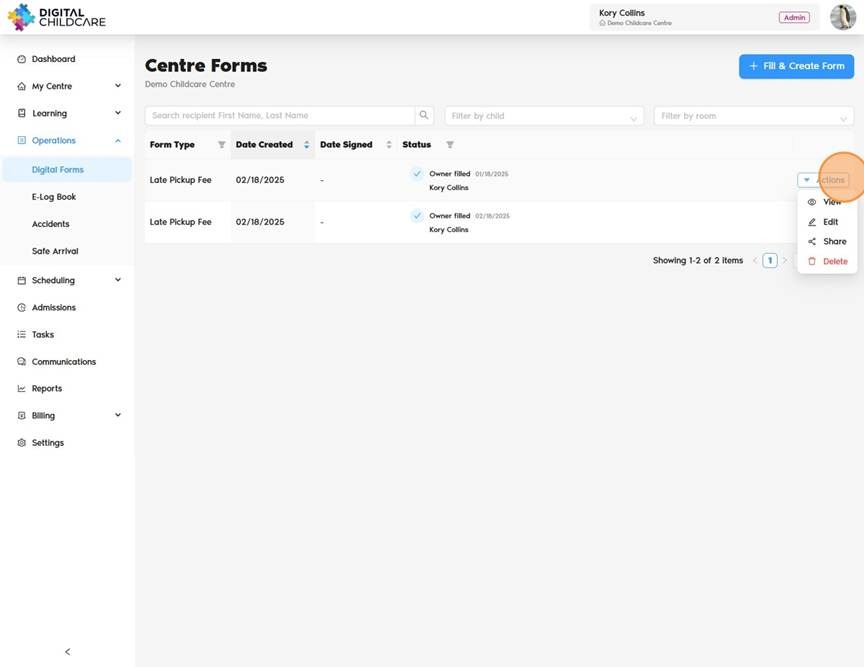
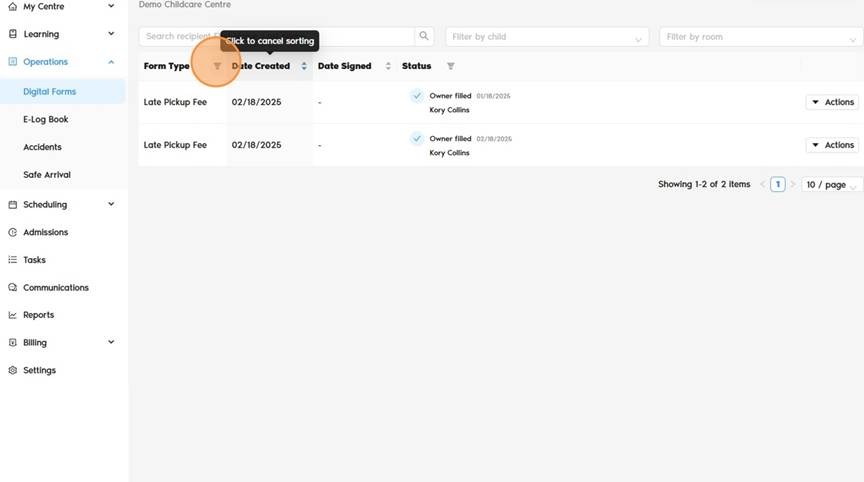
6. Click "Filters" to browse forms by category or status.
Was this article helpful?
That’s Great!
Thank you for your feedback
Sorry! We couldn't be helpful
Thank you for your feedback
Feedback sent
We appreciate your effort and will try to fix the article