This guide is essential for parents looking to efficiently manage and update their child's profile on the digital childcare platform. It provides a step-by-step approach to accessing vital information, including health records, custody details, and schedules, ensuring that all necessary updates are made for your child's safety and well-being. By following this guide, you can ensure that your child's profile is accurate and up-to-date, facilitating better communication with caregivers and administrators.
1. Navigate to https://app.mydigitalchildcare.com/dashboard
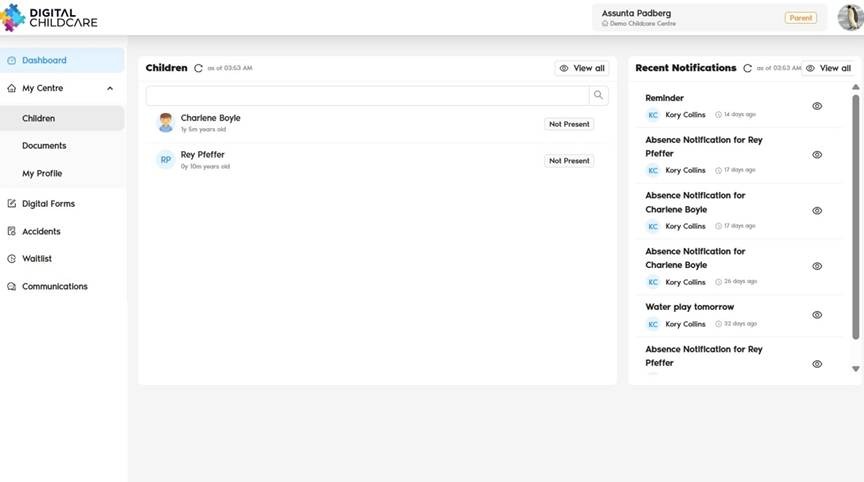
2. Click "Children" from the left panel, or click on a child's name located on the dashboard.
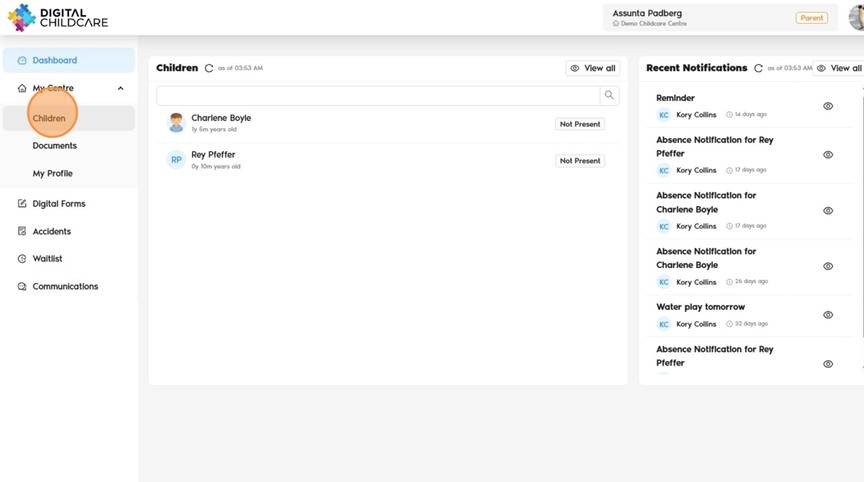
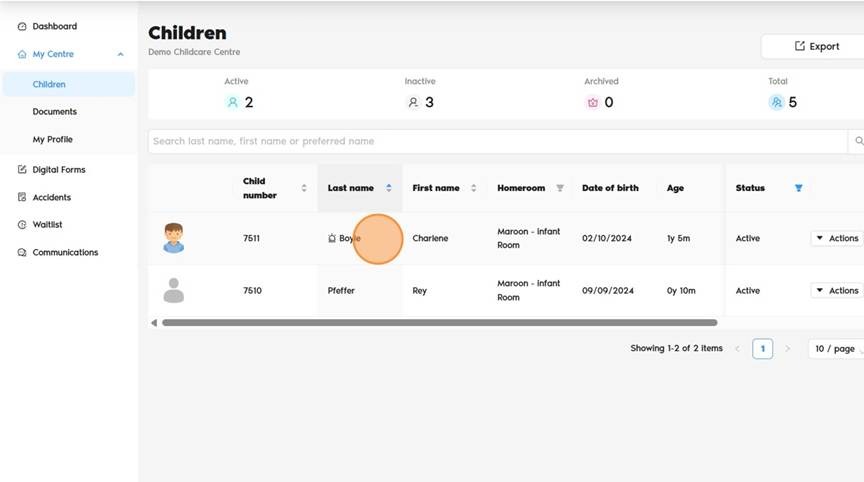
3. Select the child you would like to view or update information for (if more than one).
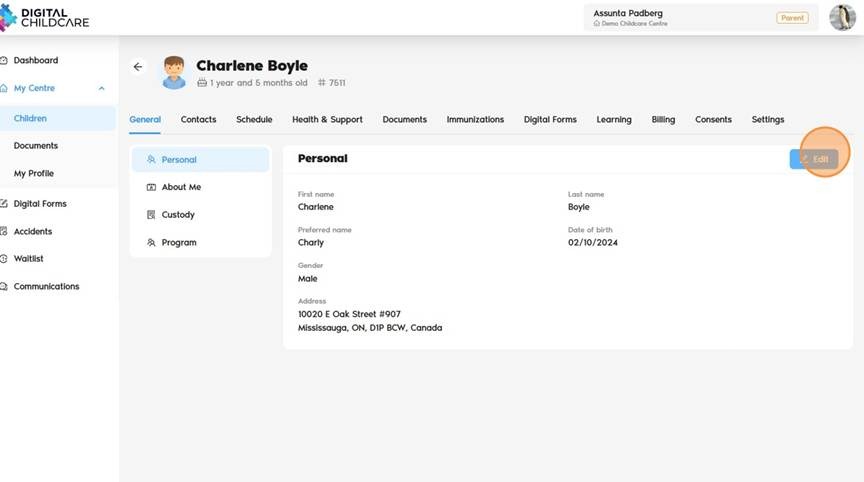
4. Click "Edit" to add or update any necessary information.
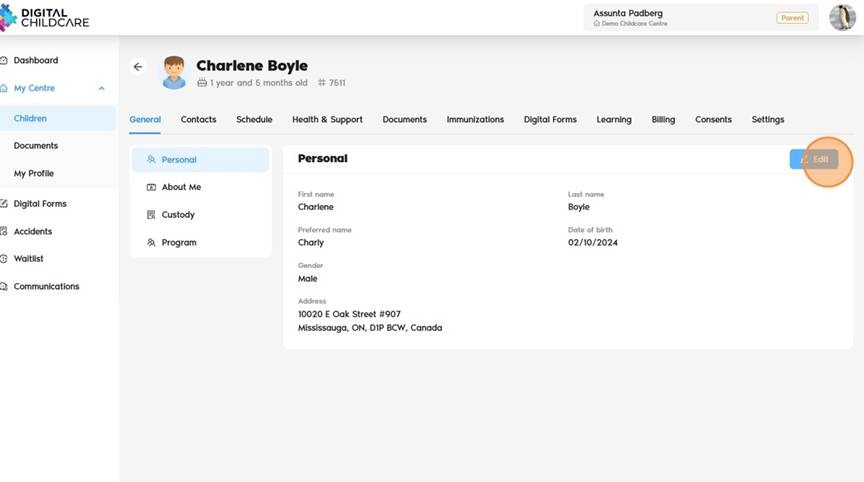
5. Once complete, click "Save."
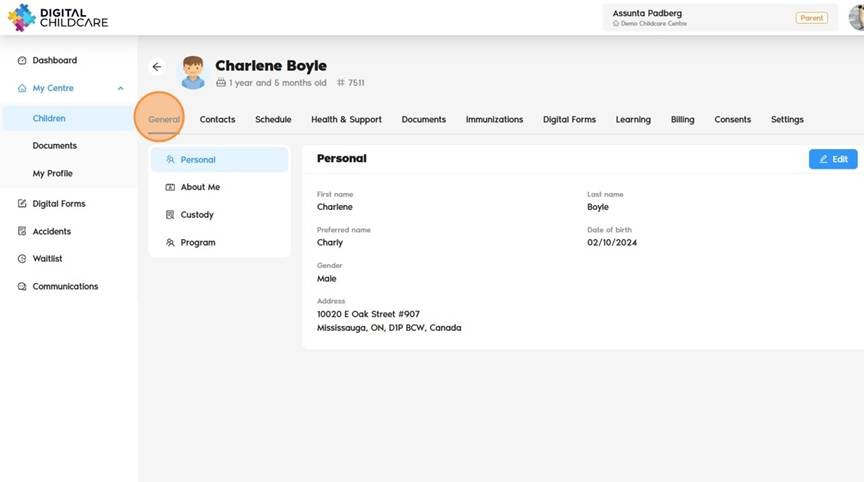
6. Click "General" and go through each section: Personal, About Me, and Custody.
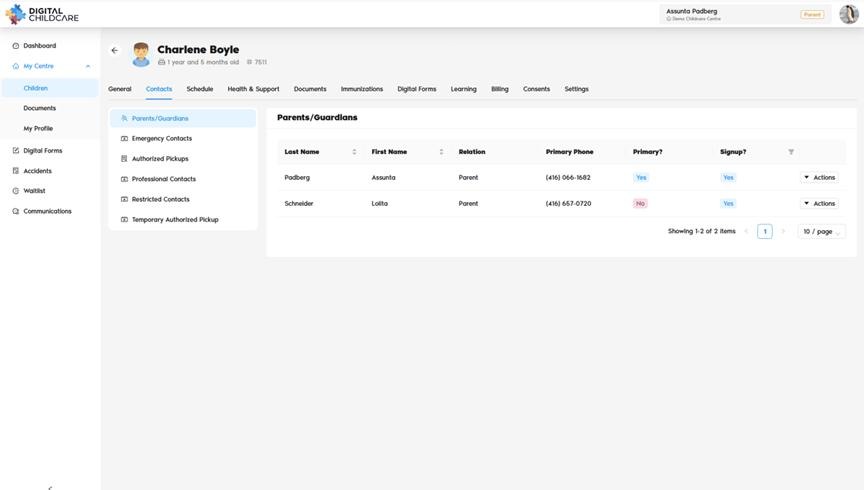
7. Click "Contacts" to view or update the following sections: Parents/Guardians, Emergency Contacts, Authorized Pickups, Professional Contacts, Restricted Contacts, Temporary Authorized Pickup.
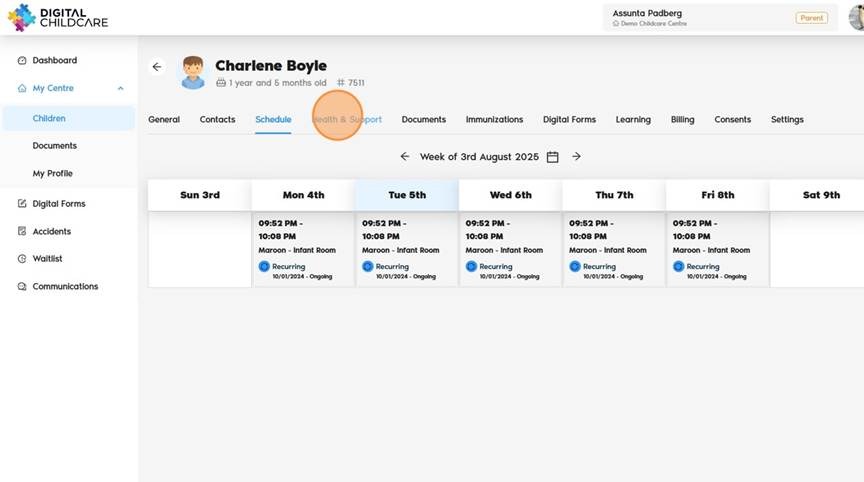
8. Click "Schedule" to view the child's schedule.
9. Click "Health & Support" to view or update the following sections: Health, Allergies & Dietary Restrictions, Individualized Support Plans, Medical Plans, Medications, Non-Prescription Products.
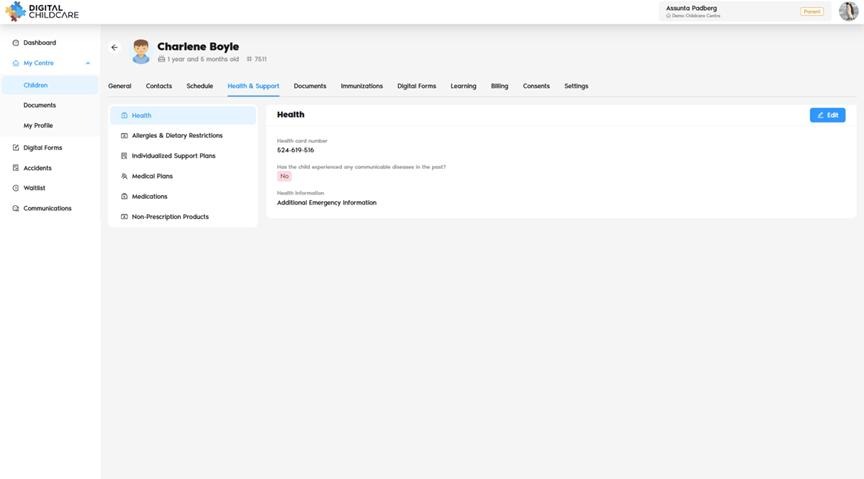
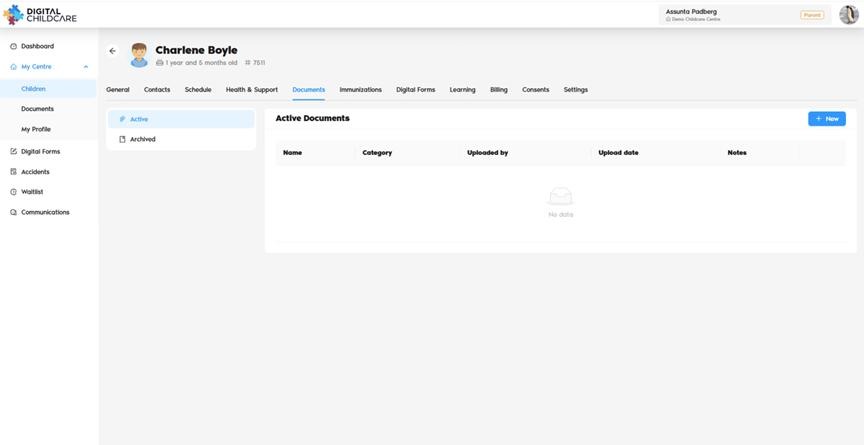
10. Click "Documents" to add or view any documents.
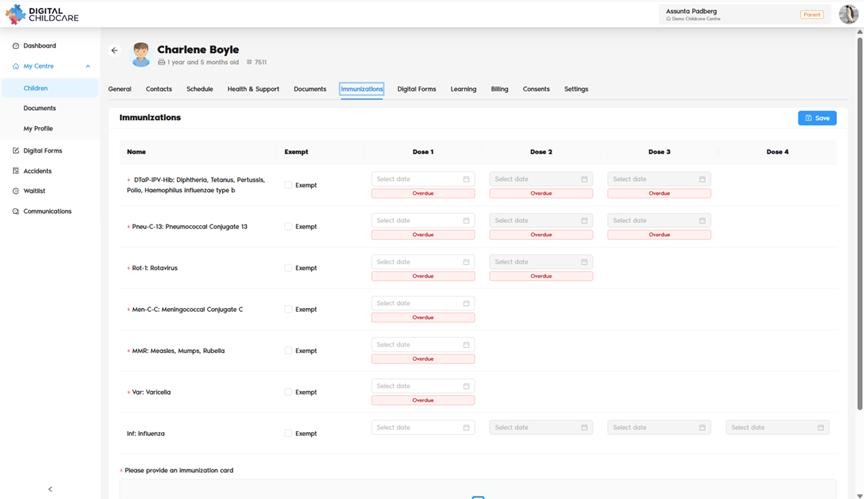
11. Click "Immunizations" to add records.
12. Click "Digital Forms" to view any forms added to the profile.
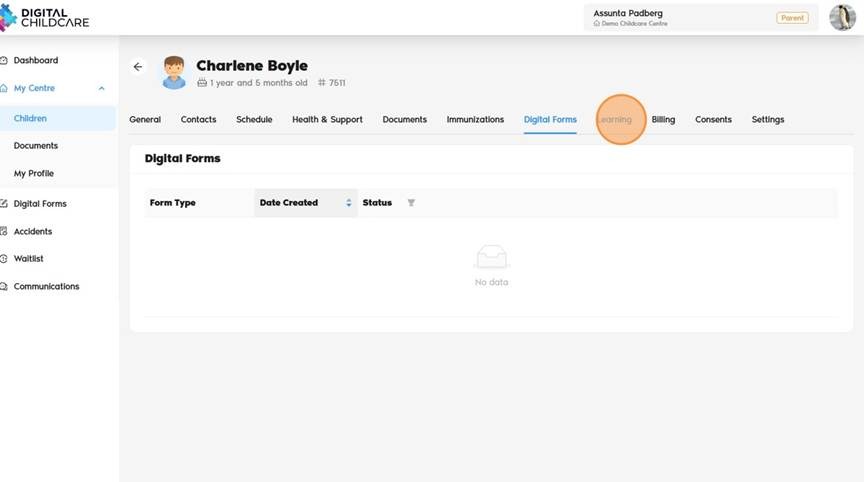
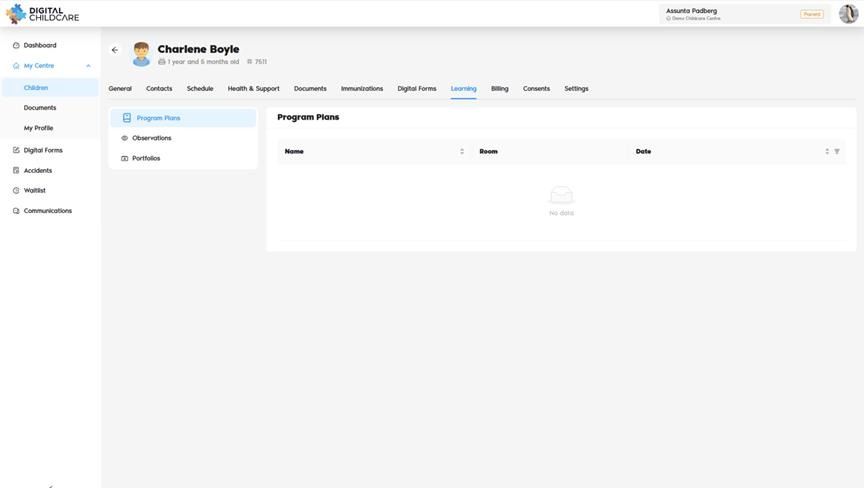
13. Click "Learning" to view Program Plans, Observations, or Portfolio.
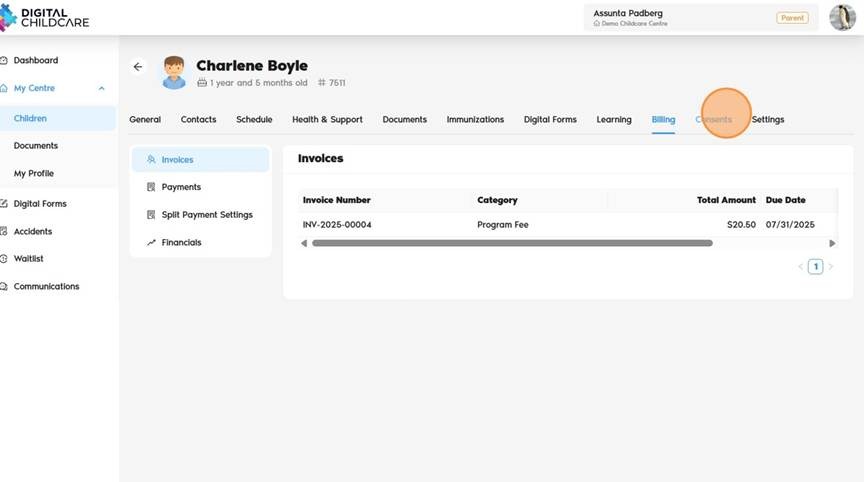
14. Click "Billing" to view Invoices, Payments, Split Payment Settings, and Financials.
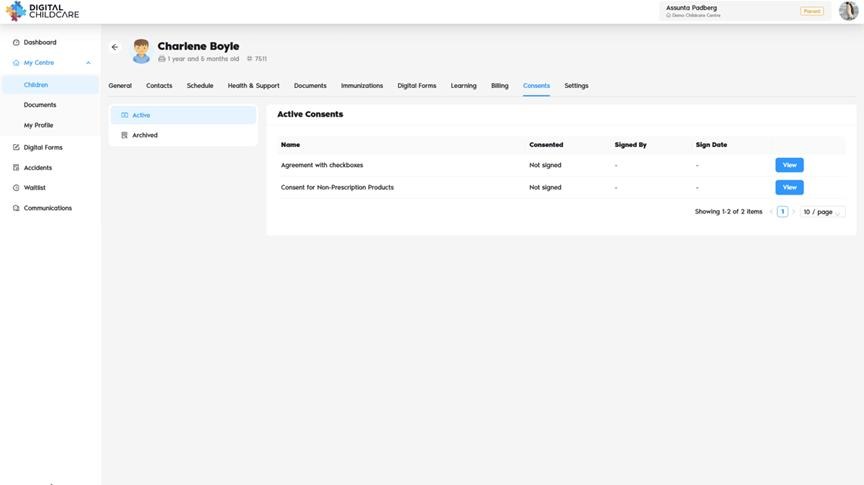
15. Click "Consents" to view and sign contracts and consents.
Alert: Some sections are uneditable and will be view-only. If you see a discrepancy, please contact your administrator to make the necessary changes. A notification will be sent to the administrator once the profile has been updated. For the safety of your child, please ensure all steps are completed.
Was this article helpful?
That’s Great!
Thank you for your feedback
Sorry! We couldn't be helpful
Thank you for your feedback
Feedback sent
We appreciate your effort and will try to fix the article