The Schedule Event screen allows you to create school events such as Holidays, Breaks, PA Days, or other Events.
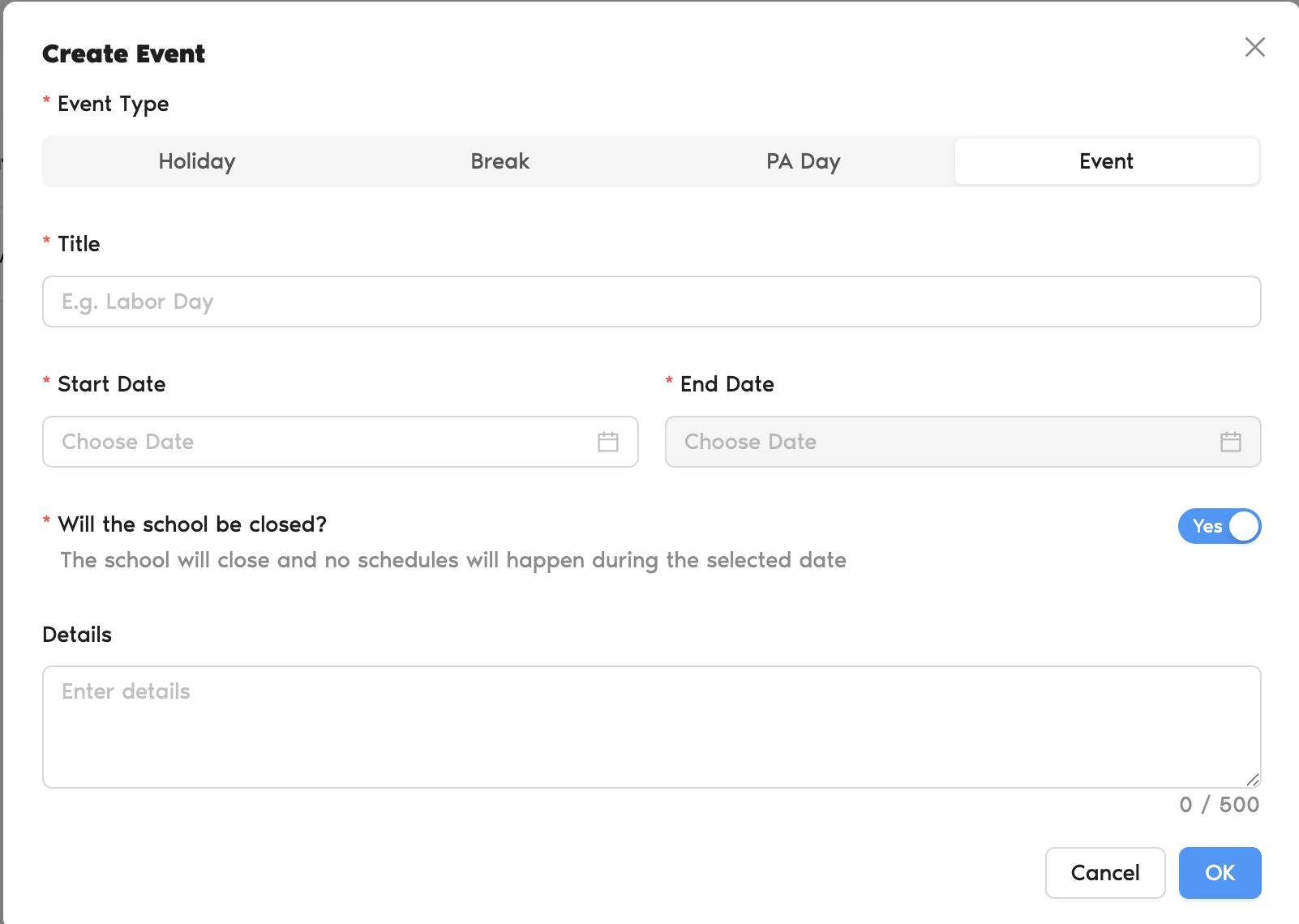
Steps to Create an Event
- Open the Events screen. https://app.mydigitalchildcare.com/events
- Click the New Event button.
- Select the Event Type:
- Holiday
- Break
- PA Day
- Event
- Enter the following event details:
- Title:
- Start Date:
- End Date:
For single-day events, the start and end dates must be the same.
- Enter the event description in the Details field (optional).
- Select whether the school will be closed on that day. If ‘School Closed’ is selected, no schedules will be created for the selected dates, and those days will be excluded from billing.
- Click the OK button to save the event.
Was this article helpful?
That’s Great!
Thank you for your feedback
Sorry! We couldn't be helpful
Thank you for your feedback
Feedback sent
We appreciate your effort and will try to fix the article