1. Navigate to https://app.mydigitalchildcare.com/login
2. To generate and process invoices, click on “PAD Management”.
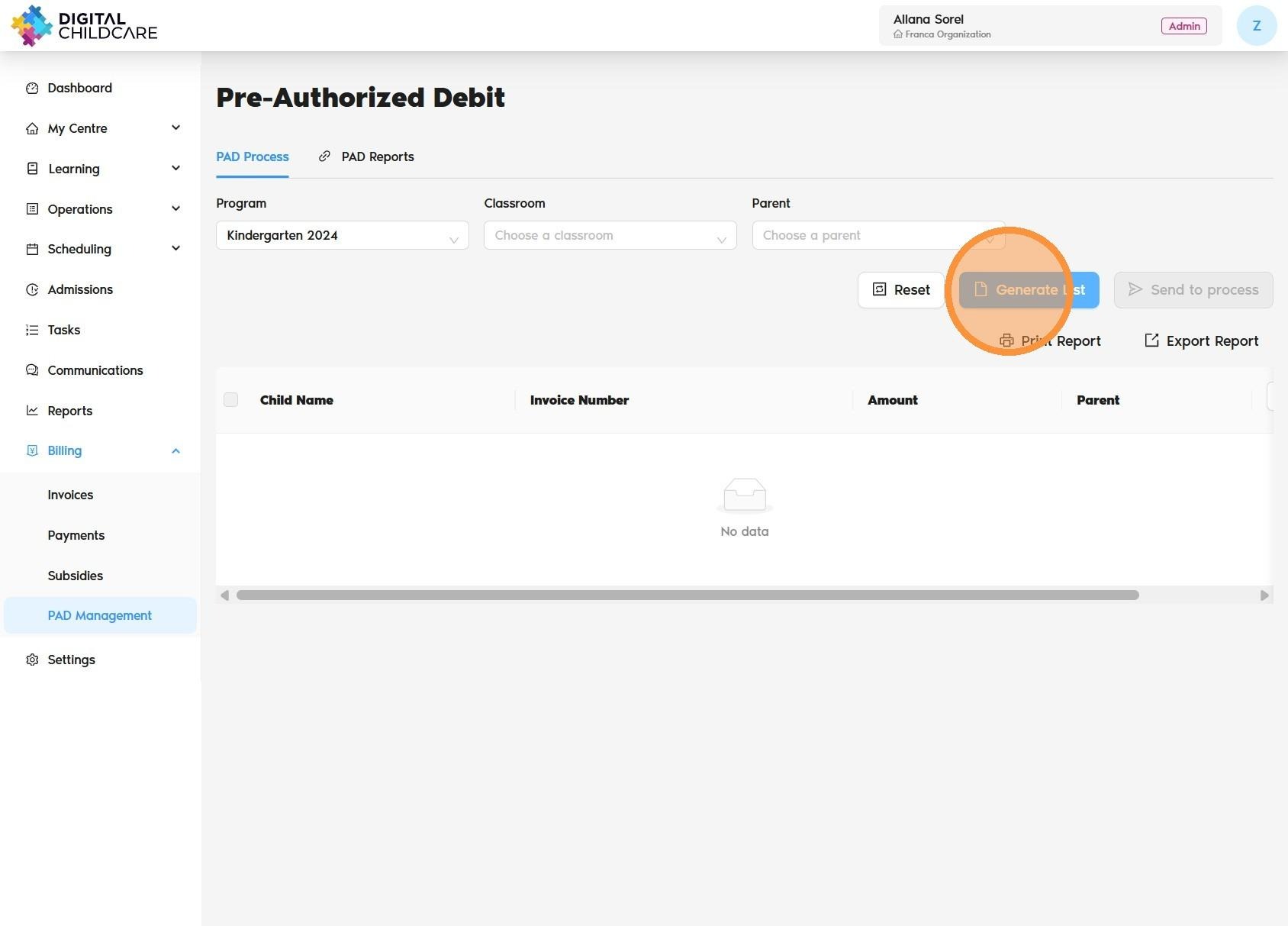
3. Select the Program, Classroom, or Parent, then click the “Generate List” button.
Alert! Parents who have not signed the agreement will not appear on the PAD generation page.
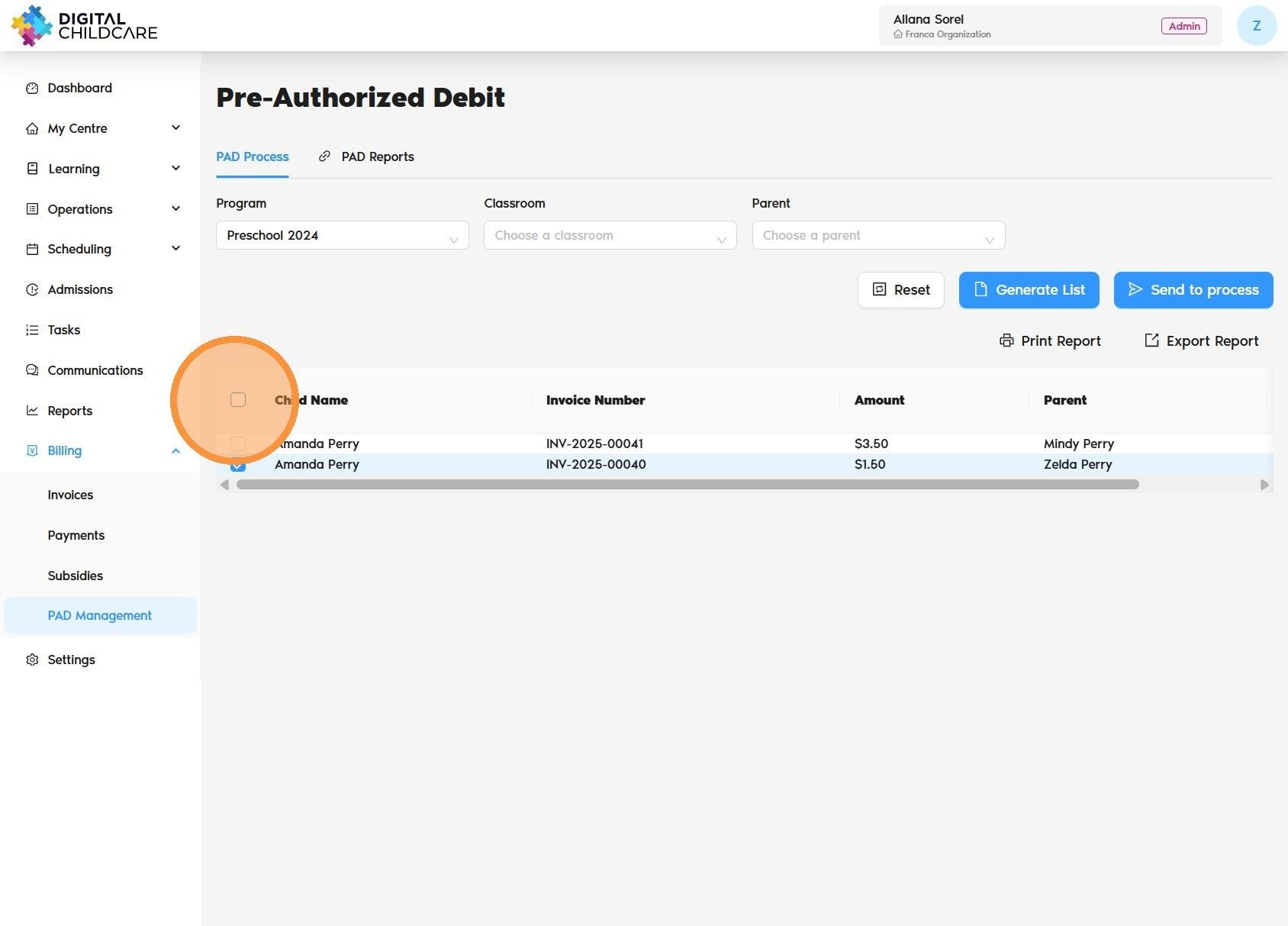
4. Review the invoices, then select the children whose invoices you would like to process or click on the Send to process button to send all invoices in a single file.
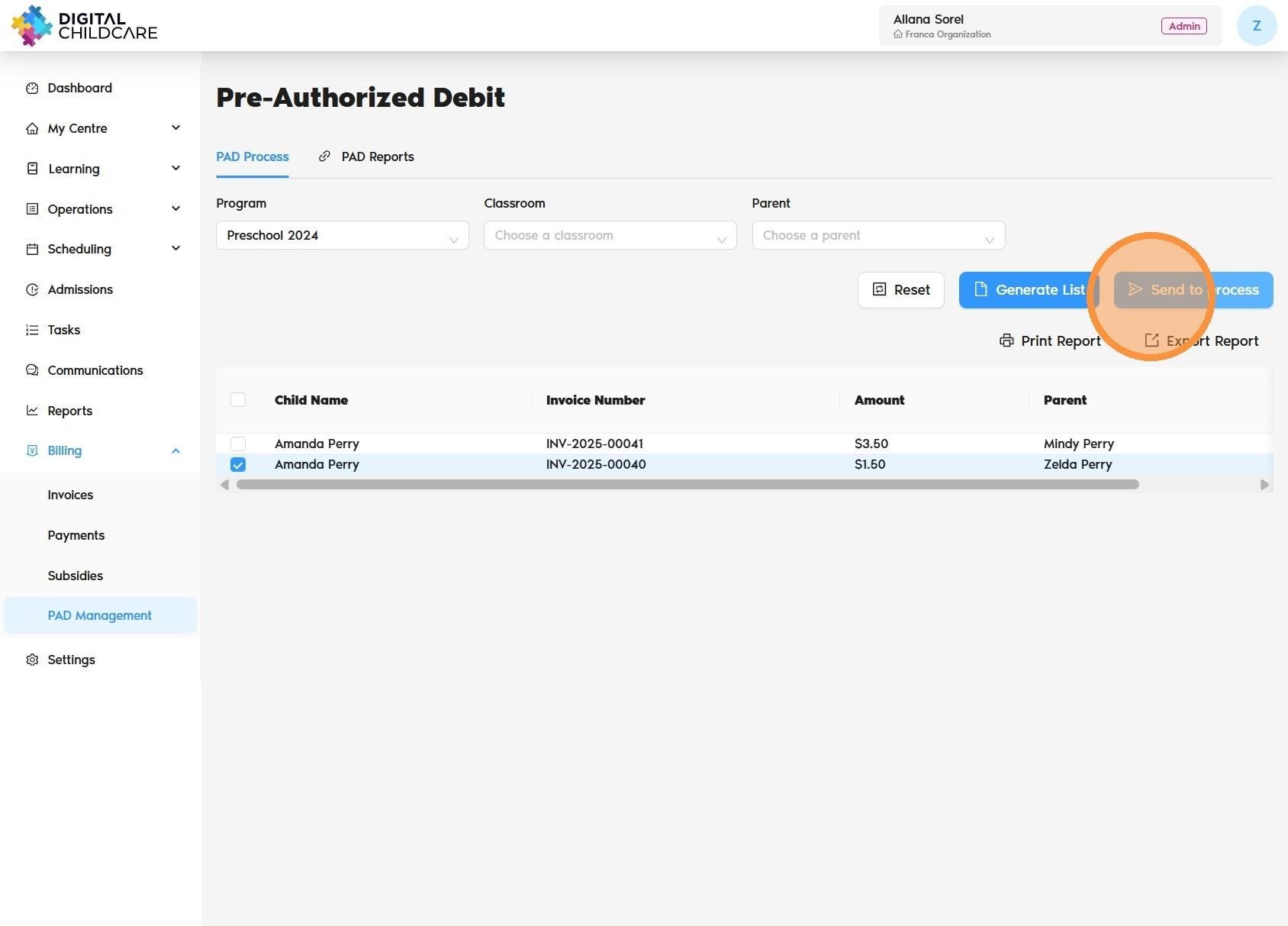
5. Once selected, click “Send to Process” to finalize the invoice processing.
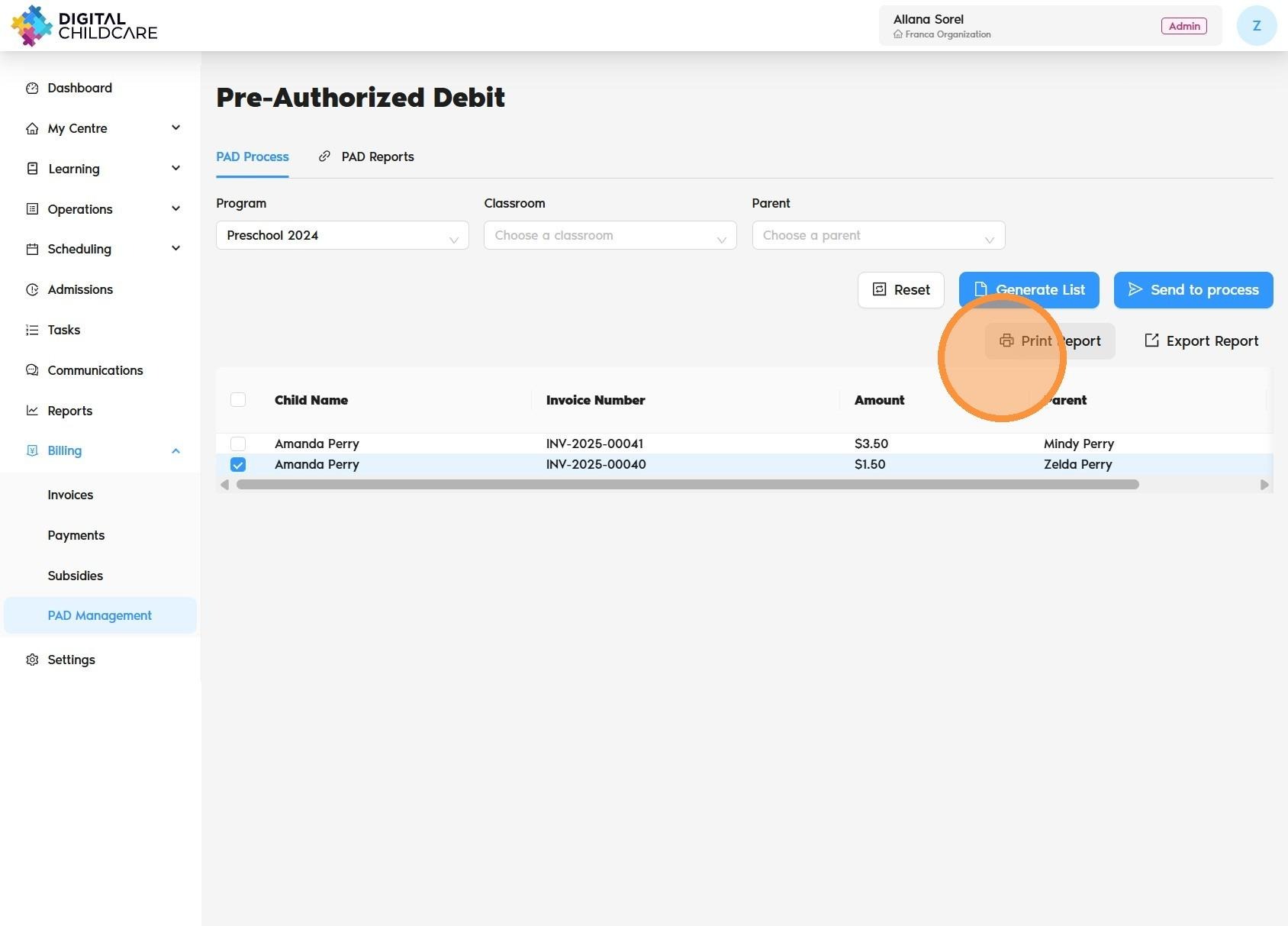
6. If you would like a copy for your records, click “Print Report”.
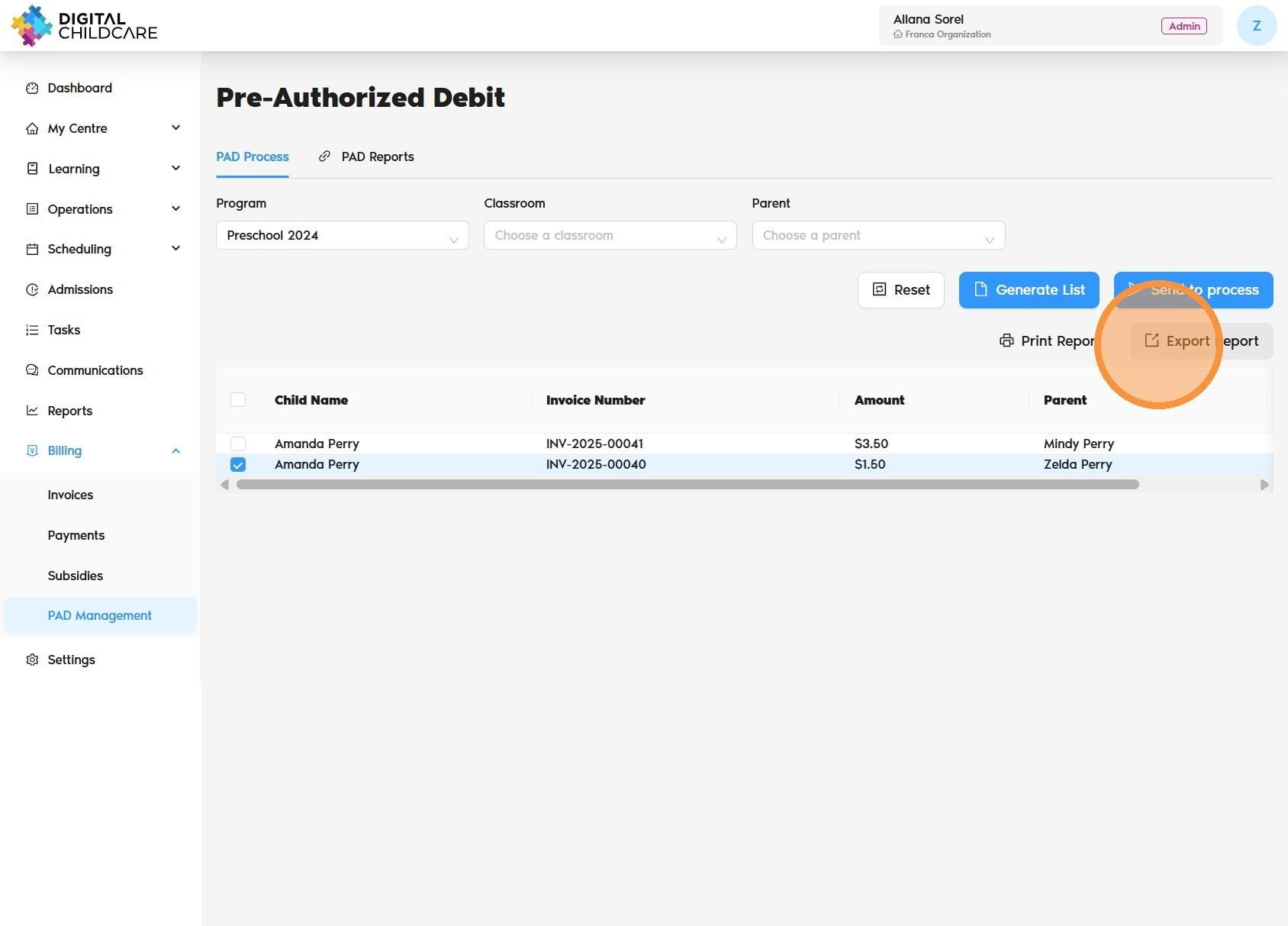
7. If you would like an Excel copy, you can export the report.
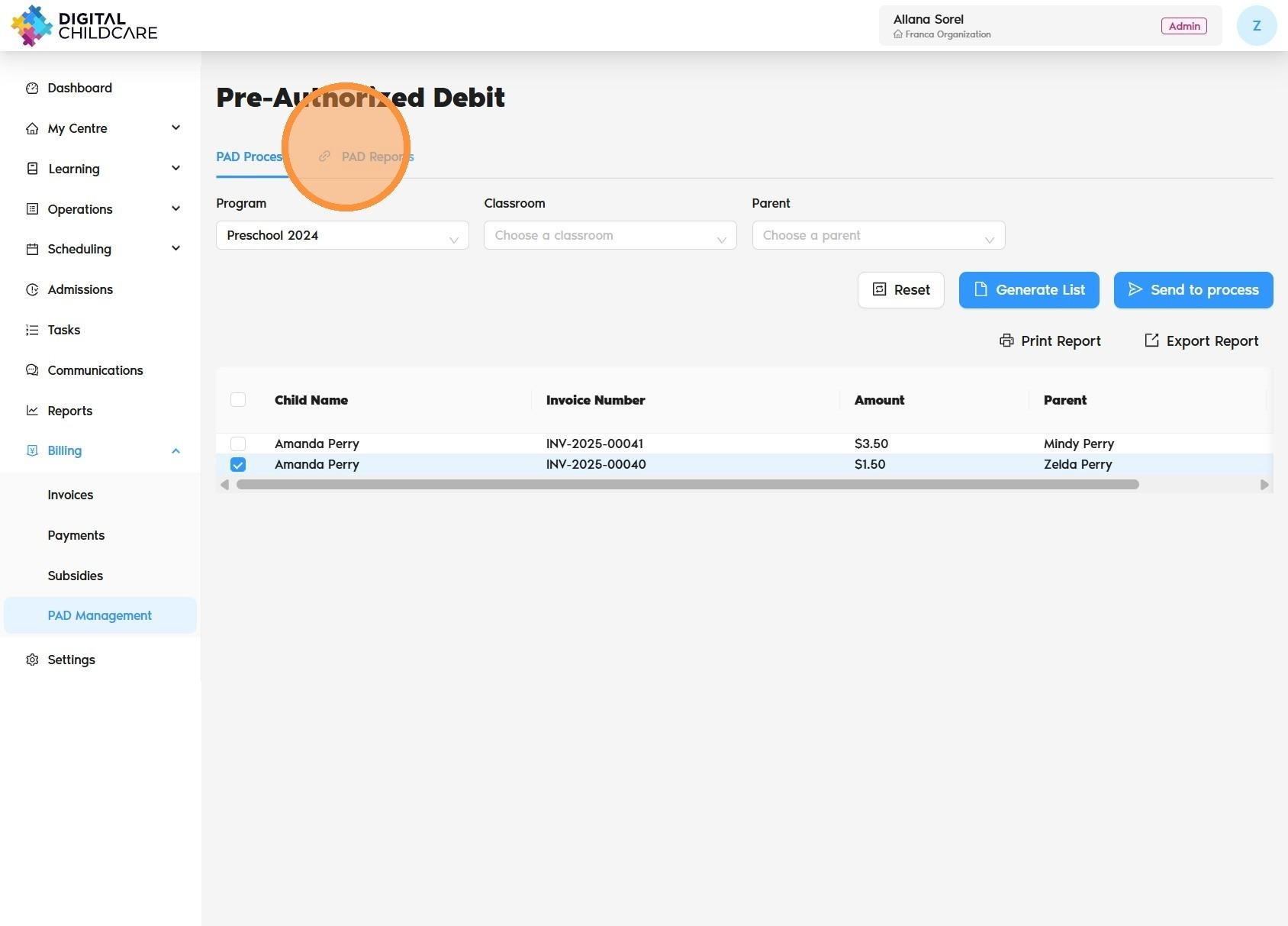
8. Click “PAD Reports” to access all billing-related reports.
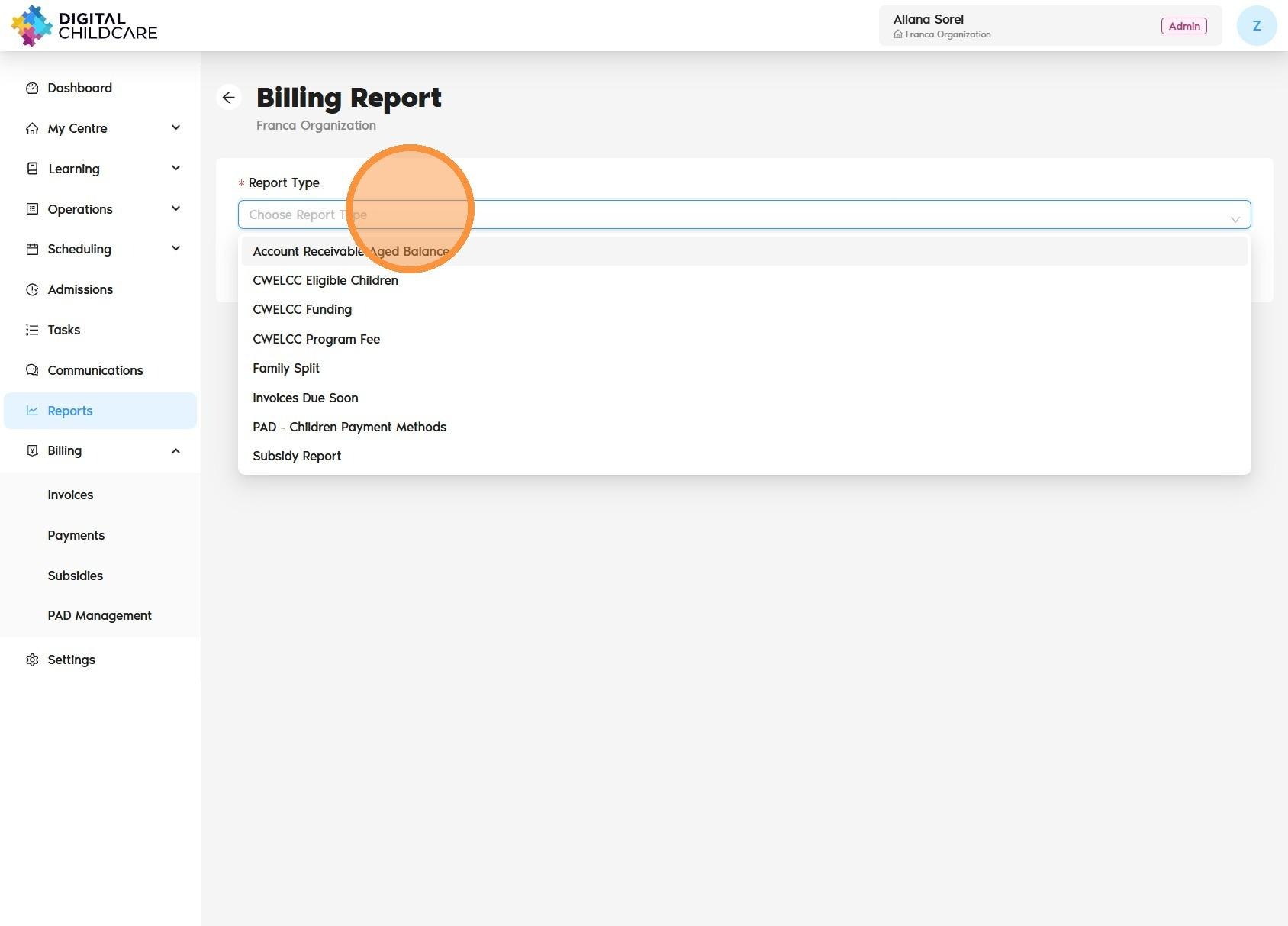
9. To see which parents have completed PAD agreements and banking info, click “PAD Children Payment Method.”
Was this article helpful?
That’s Great!
Thank you for your feedback
Sorry! We couldn't be helpful
Thank you for your feedback
Feedback sent
We appreciate your effort and will try to fix the article