This guide provides a straightforward and easy-to-follow process for changing your password, ensuring your account remains secure. By following these simple steps, you can quickly update your credentials and receive confirmation of the change, enhancing your online security. Whether you’re updating for safety or simply forgetting your old password, this guide simplifies the process, making it accessible for users of all technical abilities.
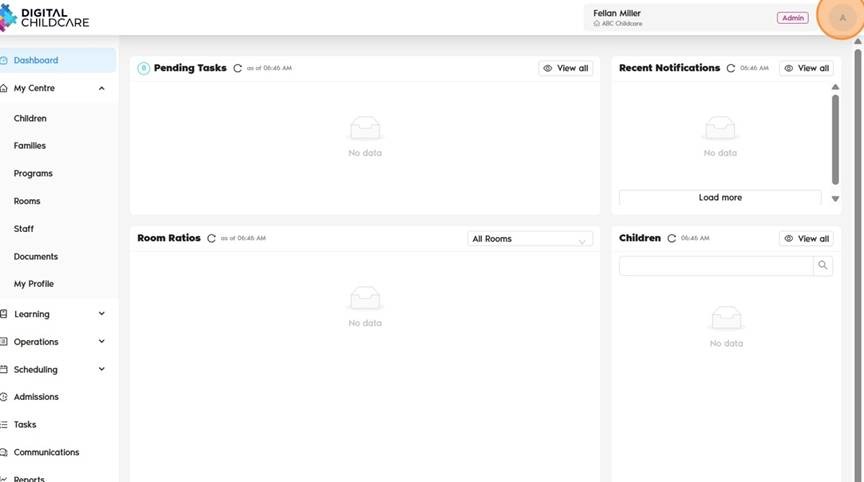
1. On the top right of the screen, click the "Icon/Photo".
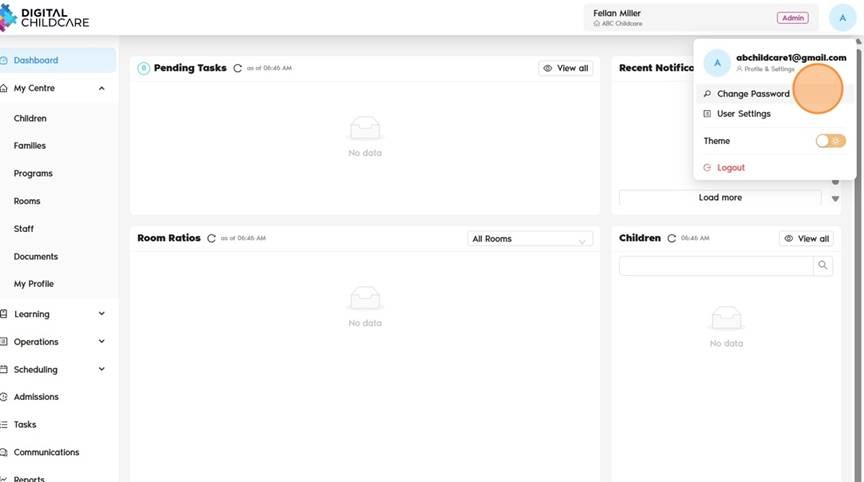
2. Click "Change Password"
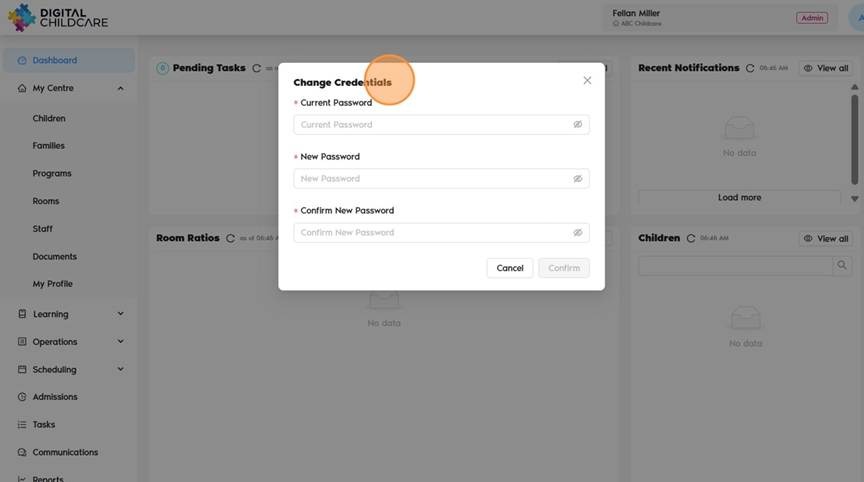
3. Change Credentials
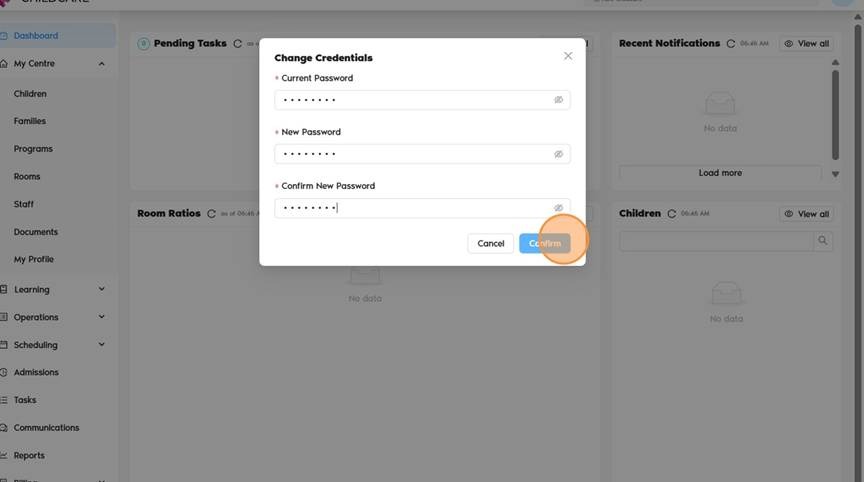
4. Once changed, click "Confirm"
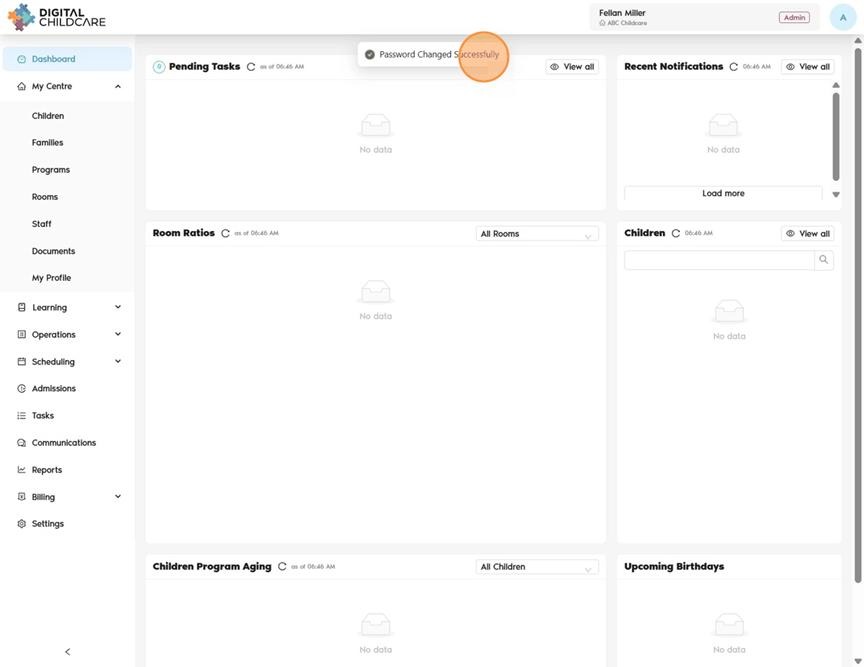
5. You will see a notification that says "Password Changed Successfully."
Alert!
When changing your password, make sure to choose a strong and secure password. Use a combination of uppercase and lowercase letters, numbers, and symbols.
Avoid using easily guessed passwords like names, birthdays, or “123456”.
Was this article helpful?
That’s Great!
Thank you for your feedback
Sorry! We couldn't be helpful
Thank you for your feedback
Feedback sent
We appreciate your effort and will try to fix the article