This guide provides a straightforward process for resetting your password, ensuring you regain access to your account quickly and securely. It highlights the importance of creating a strong password to enhance your account's security, which is crucial in today's digital landscape. Following these steps will help you navigate potential issues efficiently while safeguarding your personal information. Whether you're locked out or updating your password, this guide is an essential resource.
1. Navigate to https://app.mydigitalchildcare.com/login
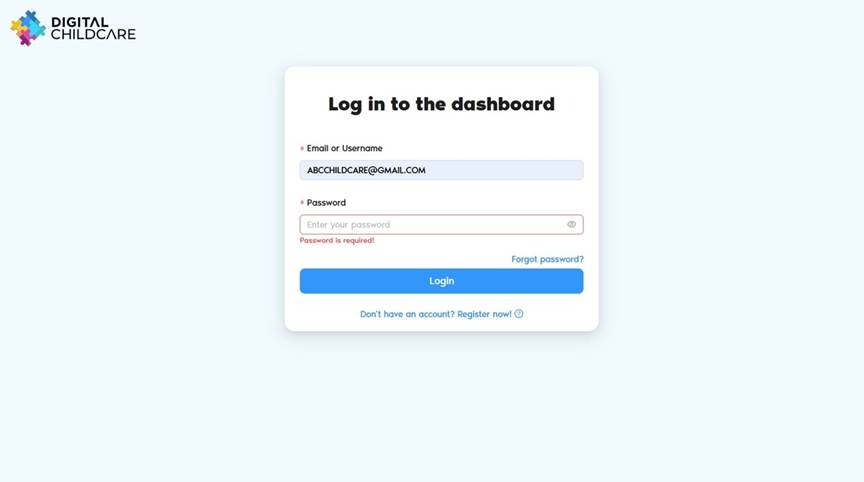
2. Click "Forgot password?"
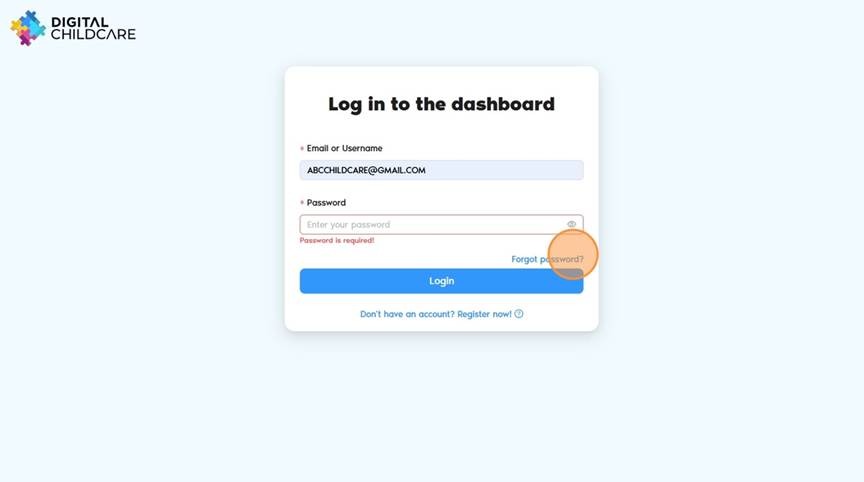
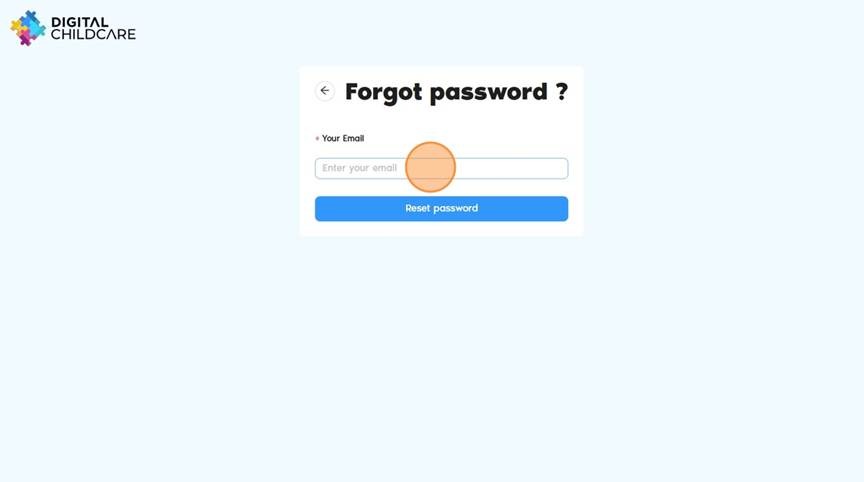
3. Enter your email address
4. Click "Reset password"
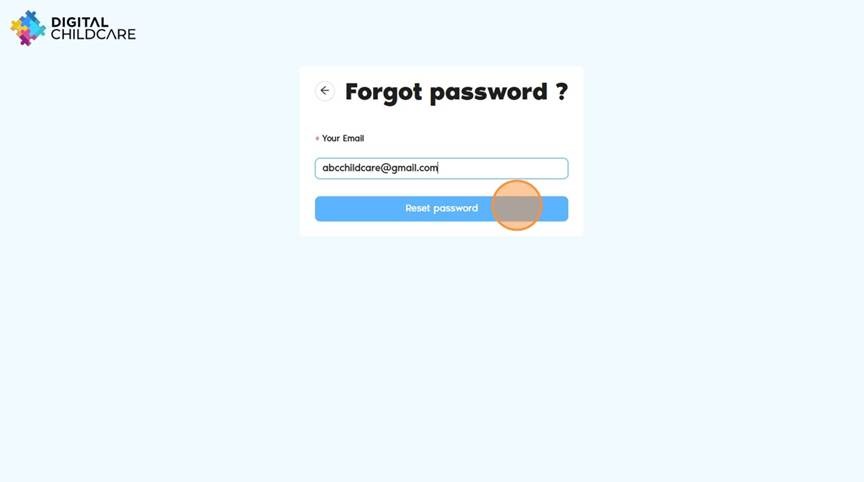
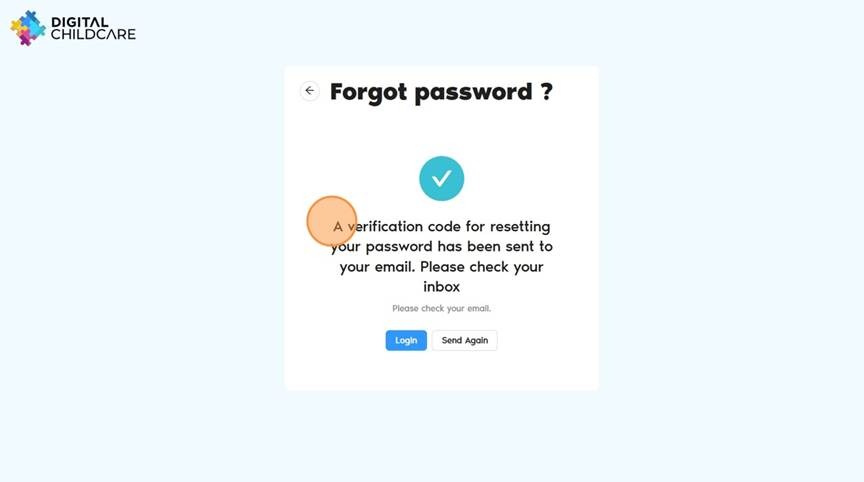
5. A verification code for resetting your password has been sent to your email.
Please check your inbox
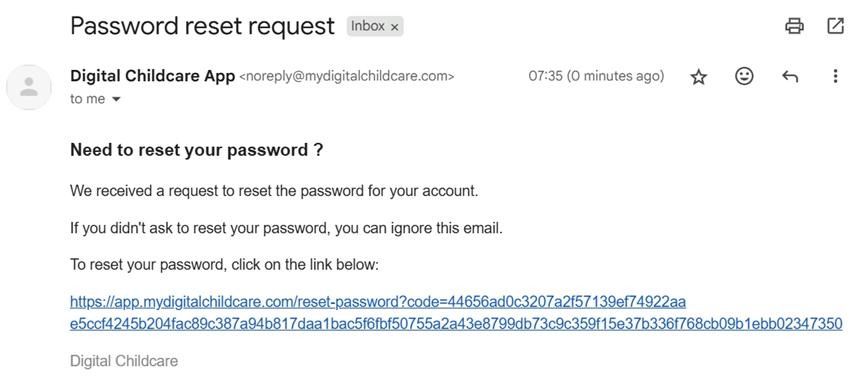
6. Click on the link that was sent to your email address.
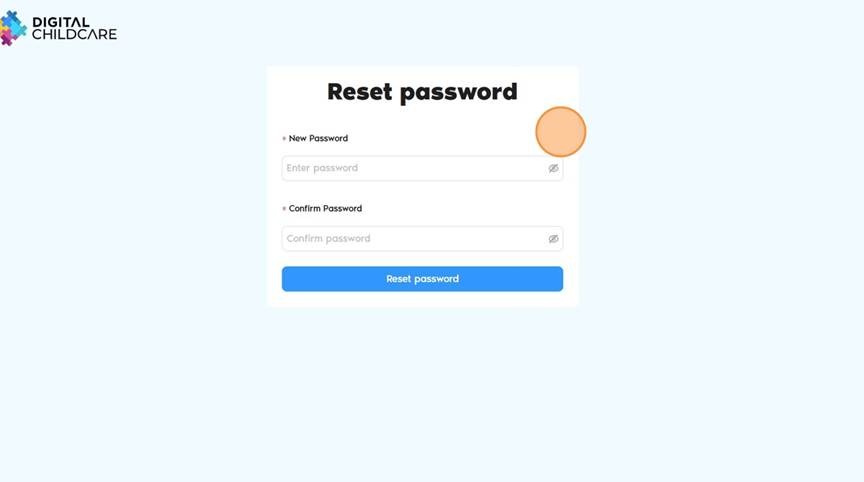
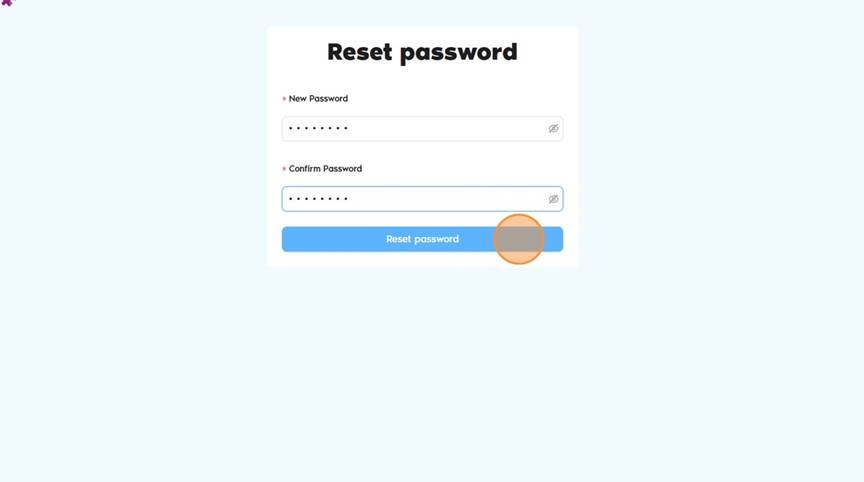
7. Click the "New Password" field and enter your new password.
8. Click "Reset password"
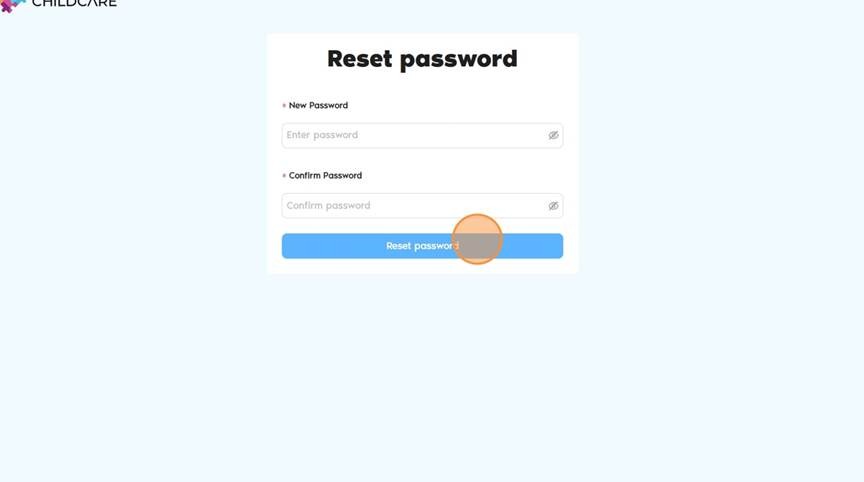
9. Click "Reset password"
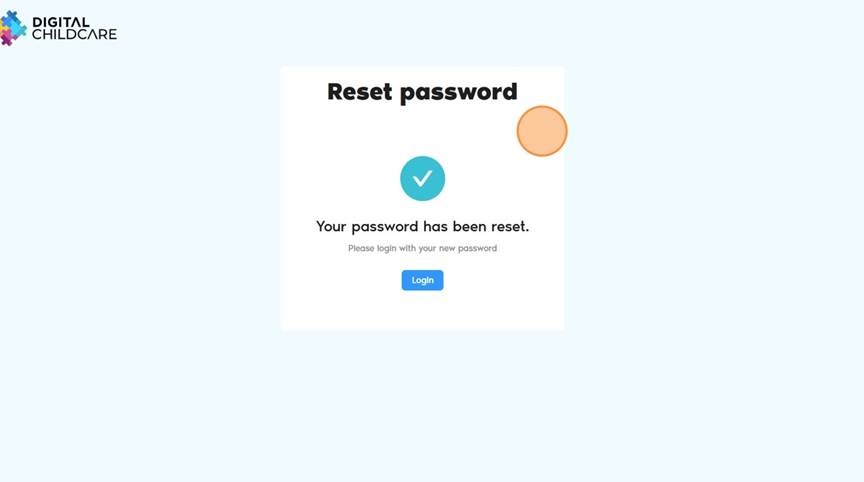
10. Your password has been reset.
Please login with your new password.
? Alert!
When setting your password for the first time, choose a strong and secure password. Use a mix of uppercase and lowercase letters, numbers, and symbols to enhance security. Avoid easily guessed passwords like your name, birthday, or “123456”.
Was this article helpful?
That’s Great!
Thank you for your feedback
Sorry! We couldn't be helpful
Thank you for your feedback
Feedback sent
We appreciate your effort and will try to fix the article